What the app actually does
Feature by feature, with a screenshot or a mock-up for the ones worth seeing. Everything on this page is something the app does today, read out of the code rather than off a roadmap. What isn’t built is at the bottom, by name.
It opens fast, and it is still fast on page 400
This is the part nobody puts on a feature list and everybody notices. The complaint that comes up again and again about the big paid reader is that it “crashes and freezes when scrolling through a 20-page document” — twenty pages. PDFsigna is a native app compiled for Apple Silicon, with no runtime underneath it and no web view pretending to be a window, and a 500-page contract scrolls like a 5-page one.
Multiple documents live in tabs of one window or in windows of their own, whichever you prefer, and the app reopens where you left off. Opening it with nothing loaded gives you a door — a drop area, your recent files with a thumbnail of the real first page, and the signature status of each one — not the system’s file picker.
Six annotation tools, and every one works from the keyboard
Highlight, underline, strike through, sticky note, free text and freehand drawing. Six, and that is the whole list — an annotation bar with forty buttons is how you stop finding the six you use.
They are live: create, select, move, edit and delete, with undo and redo all the way back. When you save, they go into the document as one incremental revision — ten annotations are not ten revisions — written into a new copy beside the original. The file you started from is never overwritten. Ever.
That last part is not politeness, it is the difference between this app and the one that comes with your Mac. Rewriting a PDF from scratch destroys any signature already inside it, so the call that does that is forbidden in this codebase and there is a test that reads the source files and fails if anyone writes it. Annotating a document that someone already signed is covered in saving, further down.
Annotating a document
- Highlight
- Underline
- Strike Through
- Note
- Text
- Draw
Services agreement
Note Check the notice period with the client before signing.
Undo and redo, and every step reachable from the keyboard.
It fills in PDF forms, which is rarer than it sounds
Almost nobody expects a signing app to do this, and it is half of what a form-shaped PDF is for. PDFsigna reads the form fields the document declares and writes your answers back into it as real field values — not as text drawn on top of the page.
The document follows you. Focusing a field — with the mouse, with Tab, or with a screen reader — jumps to its page and frames it. Whoever is filling in the seventh field needs to see the printed line next to it, and tabbing through fifteen fields across four pages turns the pages for you.
You are told how many required fields are still empty, and you are not stopped. A twenty-field form gets half-filled today and finished tomorrow.
The details that decide whether this actually works: only the fields you changed travel into the document; the visible appearance of each value is composed with the font, size and alignment the field itself declares; and the flag that some apps set to make a viewer redraw the fields is deliberately left alone, because Preview ignores it — your form would open blank — and setting it would modify the form dictionary and knock over any signature already in the file.
Filling in a form
Membership application
Form · 6 fields
- Full name Ana Ruiz Peña Text required
- Start date Text required
- I accept the terms ticked Checkbox
- Plan Annual Option group
- Region Madrid Dropdown
- File reference AL-2026-0417 Text read-only
1 required field is still empty. You can save anyway.
Your handwriting on the page, called what it is
If you don’t have a certificate — most people don’t — you can still put your handwriting where the line is. It is free, it is unlimited, and it is a visual signature: we never call it “a signature” on its own, and neither does the app.
The drawing goes into the page as an incremental revision — the bytes you started with are not touched, not one — and comes out as a new copy next to the original. Nothing is written inside it but the drawing. No name, no date: “Digitally signed · date” is a sentence you can only write when there is a digital signature to name, and a test reads the added bytes and fails if that line ever appears, in either language.
Where this matters is the file name, because a file name is read in the Finder with no panel beside it to explain anything. Which is also why, if the document you are marking was already signed by someone else, the app warns you before: adding a drawing on top changes what the page shows, so their signature stops being confirmable. It also offers the way out — with a certificate, the drawing goes inside the signature and breaks nothing.
Placing a visual signature
Services agreement
Services agreement marked.pdf
A library, not a folder of PNGs
This is the part that turns a one-off utility into something you open every day, and it is the piece nobody else offers organised. Your visual signatures live in collections — by person and by company — because a bookkeeper, a law firm or a property manager signs for more than one party and needs to not mix them up.
Each visual signature remembers its own context — which certificate signs with it, where on the page it usually goes, and the default reason. That is what turns routine signing into four gestures instead of six: you are not re-deciding the same three things every time.
Capture, today, is drawing: a trackpad, a mouse or a finger, with the stroke smoothed properly and the line thickening and thinning with how fast you move. It is the difference between a mark that looks like your handwriting and one that looks like it was drawn with a stick. Everything is stored locally on your machine and nothing is uploaded, because there is nowhere to upload it to.
The signature library
Library
- All
- Favourites
- Personal
- Example Ltd
-
 Visual signature Personal Favourite
 - Visual signature Example Ltd
- Initials Personal
Stored with this visual signature
- Certificate
- System keychain
- Usual position
- Last page, bottom right
- Default reason
- Approved
Signing with a certificate
The other kind. Your certificate — from the system keychain or certificate store, or from a .p12 file — produces a real cryptographic signature embedded in the PDF as PAdES. It detects any change made after signing, it identifies you, and it survives being emailed around.
Your private key never leaves the store it lives in. It is not exported, not copied and not held in memory by us: the app hands the system a digest and gets a signature back. The system’s permission prompt is the only dialog in the whole flow — no wizard, no “would you like to create a digital identity?”, no chain of modals.
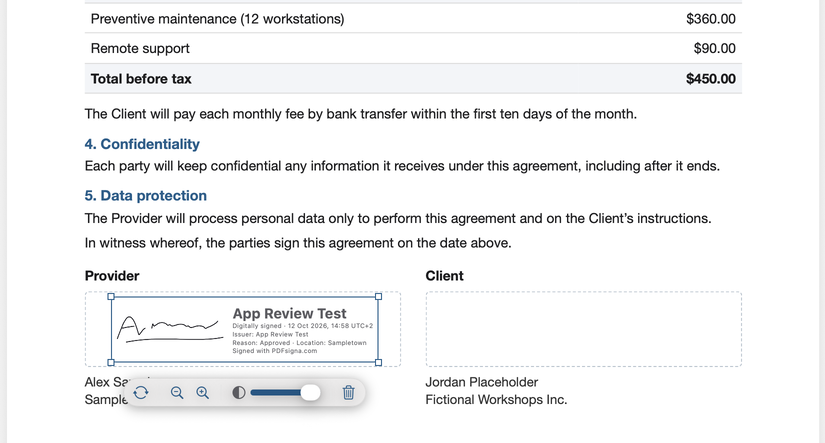
And when you have a certificate, your visual signature is wrapped as the appearance of that real signature field, inside what gets signed. The drawing stops being the legal mechanism and becomes decoration on top of something that actually holds up.
The signature box
Checking a PDF someone sent you
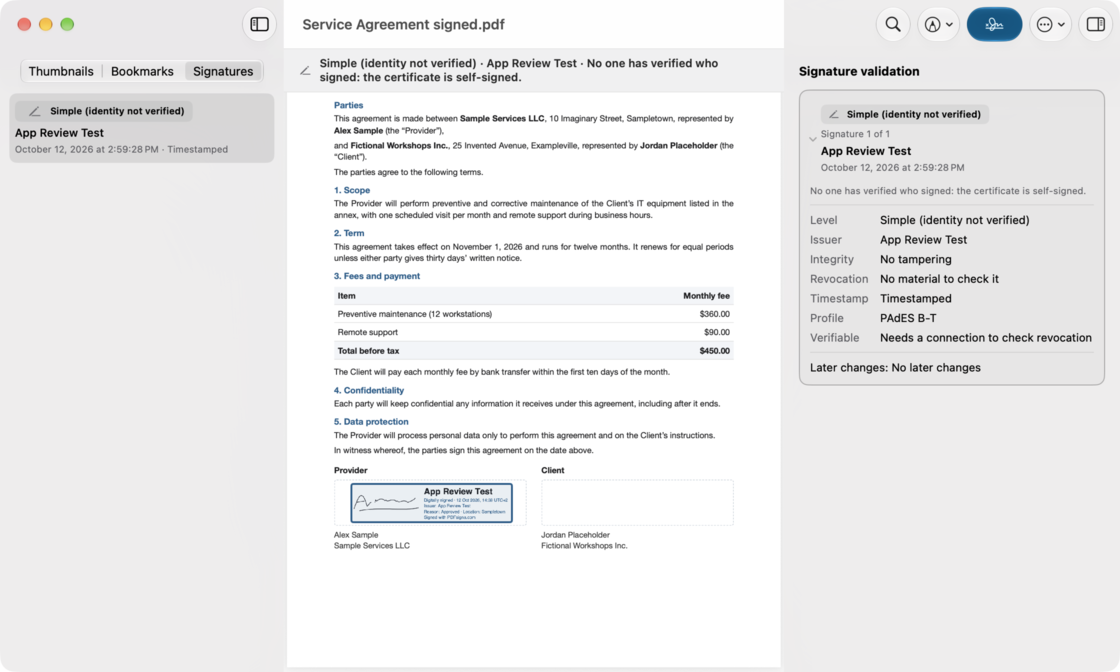
Open a signed document and the app tells you who signed it, at which level, whether their certificate was valid at the time, and whether anything changed afterwards. One gesture. No menu to find.
It reports three outcomes, the same three the European validation standard defines: valid, with its level; invalid, with the reason; and validity can’t be confirmed, which is neither of the other two and gets a treatment of its own — it does not borrow any of the five level colours, because saying a document was tampered with is an accusation and we are not going to make it by accident.
A signed PDF someone sends you
Saving never quietly breaks a signature that was already there
Preview does. Save a PDF someone else signed and it rewrites the whole file, regardless of the document’s own permissions, and the signature stops validating. We measured it on macOS 27, and it is the reason this section exists.
Everything PDFsigna writes — annotations, form values, a placed drawing, a signature — goes in as an incremental revision: the original bytes stay whole and stay at the front, and the new material is appended. And it is always written to a new copy, named for what was done to it, sitting next to the file you opened.
What we will not do is promise that every signature survives every edit, because it depends on how the document was built and the honest answer is “it depends”. So the warning says what the app is about to do — a new revision, a new copy, the original untouched — and then the validator has the last word: after saving, the file is read back and the panel shows, with a symbol and a label, what actually happened to the signature that was in it. Not our opinion. The verdict.
Closing a window with unsaved changes asks first: save, don’t save, or cancel.
Not built yet
The features this page doesn’t claim
Everything above exists. These don’t, and listing them here rather than leaving them out is the point: a page that only says what works is a page you can’t calibrate.
-
The company stamp builder. Stamps and date stamps are in the library’s data model, but the thing that generates one from a template — company name, registration number, town, logo, and a date field that fills itself in when you stamp rather than being burned into an image — is not written. Until it is, the library holds what you can draw.
-
Capturing a signature any way other than drawing it. Photographing one off paper with automatic background removal, drawing it on your phone and having it appear on the desktop, and importing an image with the same cleanup are roadmap ideas with no date, and none of them are there today.
-
Batch signing and initialling every page in one gesture. Forty PDFs in the same position with one authorisation, and initials on all forty pages of a contract, are two of the things this product exists for. They are not built yet, and we can’t say when they will be.
-
Smart cards, the Spanish national ID card included. The Spanish national ID card is not a standard PIV card, it depends on the vendor’s own module, and it has a bad history on Apple Silicon. Standard PIV cards aren’t offered in version 1 either, until they’ve been tested with a real one. The system store and
.p12files cover the common case. We’ll announce card support when it genuinely works, not before. -
Checking against the European trusted list, on macOS. The Windows app already downloads the European list (LOTL) and the Spanish one, and with them it can say “Advanced with a qualified certificate”. The Mac app doesn’t use them yet, and without them no certificate can be called qualified: on the Mac the band stops at “Advanced”.
-
The browser validator. It needs the signing engine compiled to WebAssembly, and it ships when it produces the same verdict as the desktop app — not when it looks finished.
-
The Mac app, in the store. The Windows app has been on the Microsoft Store since 12 October 2026. The Mac app is in Apple review and ships once they approve it.